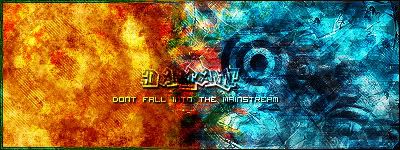
I used a CS render since it ties in with your name. I worked your image in, not in the same form, but none the less it's there.
animated, around 500 k. I don't know if anyone will get angry about file sizes so here's a still one:
I fogot about this forum changing and I made the borders white. They won't show up until we get the new skins or whatever, but I think they still look good.
Pear, just tell me what you want on it and I'll make it.
Thats good. How did you get the background to move like that? Out of all the sig makers i have seen i think that this is one out of a handful of times where i have seen them make a moving one.
He probably used Imageready. It's an animation program that usually comes with photoshop on purchase. You can make it by making two frames having the bg at the starting point on first and end point on second. Click tween, select the number of frames you think would be good. the less it is, the faster it moves, the more it is, the slower it moves.
Yeah, I used imageready to do it. I didn't tween though, I moved it around 10 px each frame, and did it until it got to the end of the image. I actually copied the image and flipped it so that it would match up with the ends of the other one, so it will keep scrolling smoothly.
Sorry about the misspelling, do you want me to fix it?
Yea, it would be nice if you could fix it, but its not entirely important. I will be regaining my photoshop when I get my laptop back sometime next week and I will try to make something half decent. I could use some pointers or help because those tutorials are quite retarded.
Sure, it's the exact same way for me. I cant write a manual worth crap, yet i find that i am getting increasingly better with step by step explanations when i am talking one on one with a person. That might work better for you as well. Anyways, it usually works better in real-time although it would seem that PM's work well too.
P.S. - I'm not saying that i know anything about making sigs and such although i wish did know... =\
You do it by using the define pattern feature.
For scanlines(slanted) create a new 4px by 4px image, transparent background. Zoom in as far as you can, and use the pencil tool at 1px to go from the bottom corner to the top corner opposite of it. Select all and then go to edit-> define pattern.
For gridlines create an image of any size as long as it is a 1 to 1 ratio of height to width, depending on how big you want your squares to be. Zoom in again and use the pencil tool to make a vertical line along the very left(or right) side from top to bottom, and then a horizontal line on the very edge from left to right. What you filled in should look like an L flipped one way or another. Select all and define pattern like you did for the scanlines.
To use either of these make a new layer on your image, select all, and go to edit->fill and select your pattern from the box.
About scanlines: Reduce opacity. Change blending modes. Use the eraser (with a low opacity) around the render. Don't just slap them on there. It looks stupid.






Comment